
Android Privacy: A Step-by-Step Setup

Want tighter privacy on Android without ditching Google entirely? Below is a practical walkthrough—based on the exact screens you shared—to reduce data collection, ad targeting, and accidental exposure while keeping core services usable.
–
Before You Start
You’ll use three places: Android Settings, the Google app (Assistant settings), and your Google Account → Data & privacy.
If you have multiple Google accounts on the phone, repeat account-level steps for each one.
–
Part 1 — Lock Down Your Google Account (Data & privacy)
Path: Settings → Google → Manage your Google Account → Data & privacy
- Pause Web & App Activity
- Tap Web & App Activity → toggle Pause (Off).
- What it does: stops saving searches, app activity, and associated location to your account.
- Pause Location History (Timeline)
- Tap Timeline / Location History → toggle Pause (Off).
- What it does: prevents your movements from being added to Maps Timeline.
- Pause YouTube History
- Tap YouTube History → toggle Pause (Off).
- What it does: stops saving watch and search history for YouTube recommendations.
- Turn Off Personalized Ads (My Ad Center)
- Open My Ad Center → set Personalized ads to Off.
- What it does: reduces profile-based targeting across Google services like YouTube and Search.
- Disable Partner Ads Personalization
- In Partner ads settings, turn personalization Off.
- What it does: limits personalization on non-Google sites that partner with Google ads.
- Turn Off Search Personalization
- In Search personalization, set to Off.
- What it does: stops using account data for tailored Search experiences.
- Review Google Fit Privacy (if you use it)
- Tap Google Fit privacy → restrict what’s saved and which connected devices/apps can share health data.
- Delete Past Activity (Optional but Recommended)
- Still in Data & privacy, open My Activity.
- Use Delete → choose All time or a custom range.
- Consider setting Auto-delete (e.g., 3 or 18 months) if you want some history but not forever.
(see photo above)
–
Part 2 — Minimize What the Google Assistant Stores
Path: Google app → profile photo → Settings → Google Assistant
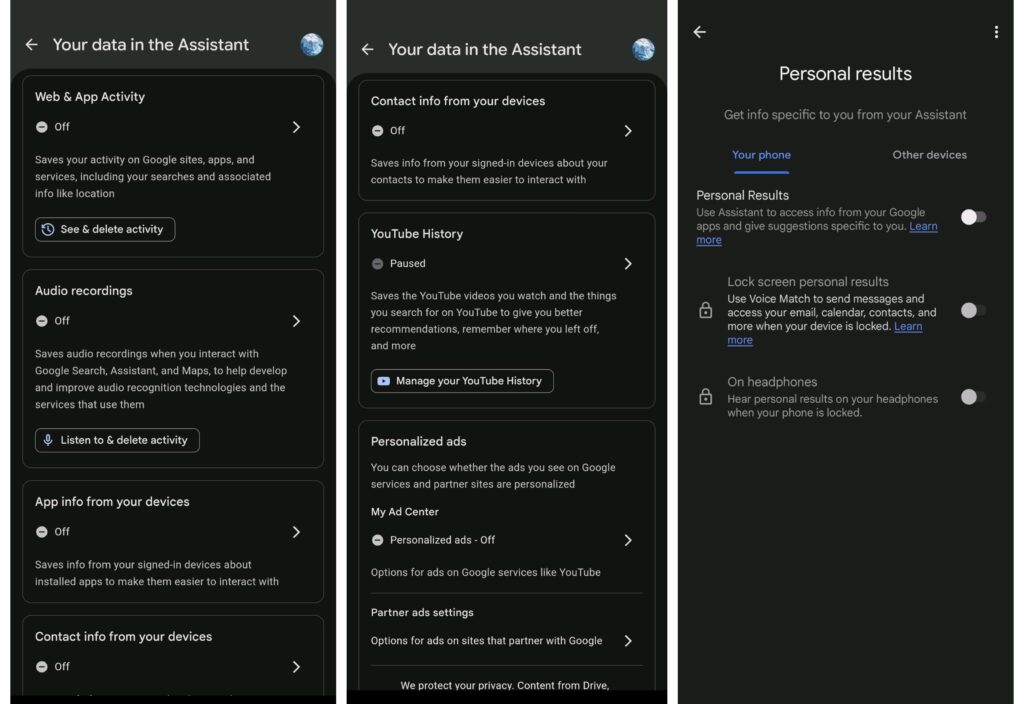
- Turn Off Web & App Activity for Assistant
- Open Your data in the Assistant → Web & App Activity → ensure Off.
- Mirrors Step 1 but scoped from Assistant.
- Disable Assistant Audio Recordings
- In Your data in the Assistant, set Audio recordings to Off.
- What it does: prevents storing voice inputs for model training or review.
- Block Device-Derived Data in Assistant
- App info from your devices → Off.
- Contact info from your devices → Off.
- What it does: stops Assistant from ingesting app and contact details for suggestions.
- Turn Off Personal Results
- Go to Personal results → toggle Off.
- Also turn Off for Lock screen personal results and On headphones.
- What it does: prevents Assistant from surfacing emails, calendar items, contacts, etc., especially on a locked device.
–
Part 3 — Cut Device-Level Ad Tracking
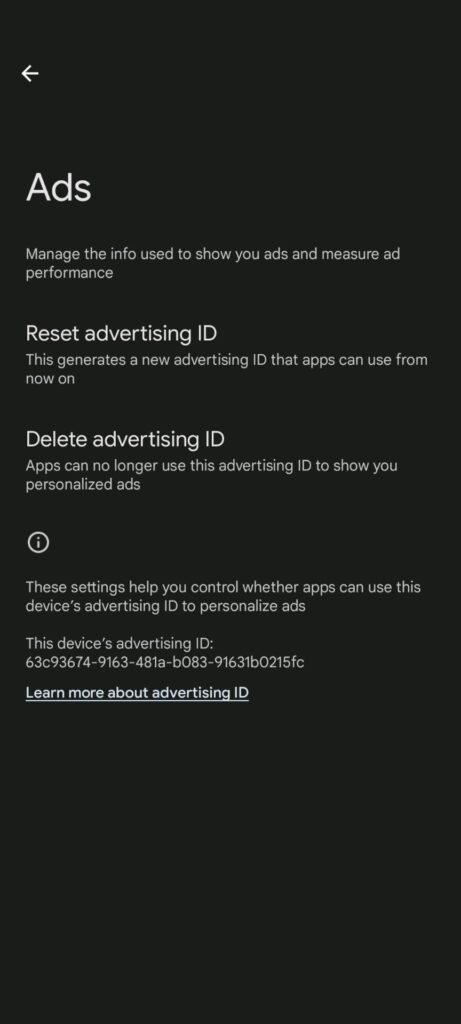
Path: Settings → Google → Ads
- Reset or Delete Your Advertising ID
- Tap Reset advertising ID to generate a fresh ID, or choose Delete advertising ID to prevent apps from using it for personalized ads.
- What it does:
- Breaks existing cross-app ad tracking ties on this device.
–
Part 4 — Quick Extra Hardening on Android
- Tighten App Permissions
- Settings → Privacy → Permission manager.
- Set Location, Contacts, Microphone, Camera, Calendar, Call logs, and Nearby devices to Ask every time or Deny for apps that don’t truly need them.
- Reduce Passive Location Signals
- Settings → Location → Location services.
- Turn Wi-Fi scanning and Bluetooth scanning Off (apps can still scan even when Wi-Fi/Bluetooth are off if these are enabled).
- Turn Off Usage & Diagnostics (if present)
- Settings → Privacy → toggle Usage & diagnostics Off to stop sending device analytics to Google.
- Review Backups & Autofill
- Settings → System → Backup: confirm you’re comfortable with what’s backed up to Google.
- Settings → Password & accounts → Autofill: consider using local or third-party encrypted managers if desired.
–
What You’ll Lose (Trade-Offs)
- Less personalized Search, Maps, and YouTube recommendations.
- Assistant becomes more generic and won’t surface personal info on lock screen or headphones.
- Ads are less relevant (which is the point), but you’ll still see ads.
- Ongoing Maintenance
- Revisit My Activity, Maps Timeline, and YouTube History monthly to ensure they remain paused and to clear residual items.
- After major Android or app updates, re-check toggles (some vendors resurface prompts).
- Audit app permissions quarterly.
–
Android Privacy Checklist
- Web & App Activity — Paused
- Location History / Timeline — Paused
- YouTube History — Paused
- My Ad Center — Personalized ads Off
- Partner ads settings — Off
- Search personalization — Off
- Assistant: Web & App Activity — Off
- Assistant: Audio recordings — Off
- Assistant: App info from devices — Off
- Assistant: Contact info from devices — Off
- Assistant: Personal results (incl. lock screen, headphones) — Off
- Ads: Delete advertising ID (or Reset)
- Permissions pruned, passive scanning off, usage & diagnostics off
–
Set up this way, you’ll still have a fully functional Android phone with Google services—but with far less data exhaust and far fewer personalized ad surfaces.